
A website unblocker is useful when you need to open a blocked public website from a browser and cannot install extra software. The safe way to use one is simple: open public pages, avoid sensitive logins, understand what your network can still see, and close the session when you are done.
That answer is less exciting than most unblocker advice, but it is the one that holds up in real use.
People usually search for a website unblocker in a hurry. A page is blocked at school, a workplace filter catches the wrong site, a hotel Wi-Fi network is strangely restrictive, or a public computer will not let them install a VPN. In those moments, a browser-based tool can be the difference between finishing a task and wasting half an hour trying workarounds.
This guide explains how to use WebsiteUnblocker in the practical way: as a no-download browser access tool, not as a magic privacy shield.
The quick rule
Use a website unblocker for:
- Public webpages
- Research material
- Documentation and help centers
- News articles and reference pages
- Simple media pages that do not require sensitive accounts
- Quick checks when a site may be blocked on your current network
Avoid using a website unblocker for:
- Banking, insurance, tax, health, or legal portals
- Password resets
- Admin dashboards
- Private work systems
- File downloads from unknown sources
- Anything where account security matters more than quick access
If you remember one thing, make it this: a website unblocker is best for opening public pages, not for handling private accounts.
How a no-download website unblocker works
The reason WebsiteUnblocker does not need an install is that it runs through your browser. You open the unblocker page, enter the blocked URL, and the service loads the target page through a secure proxy path.
The basic workflow looks like this:
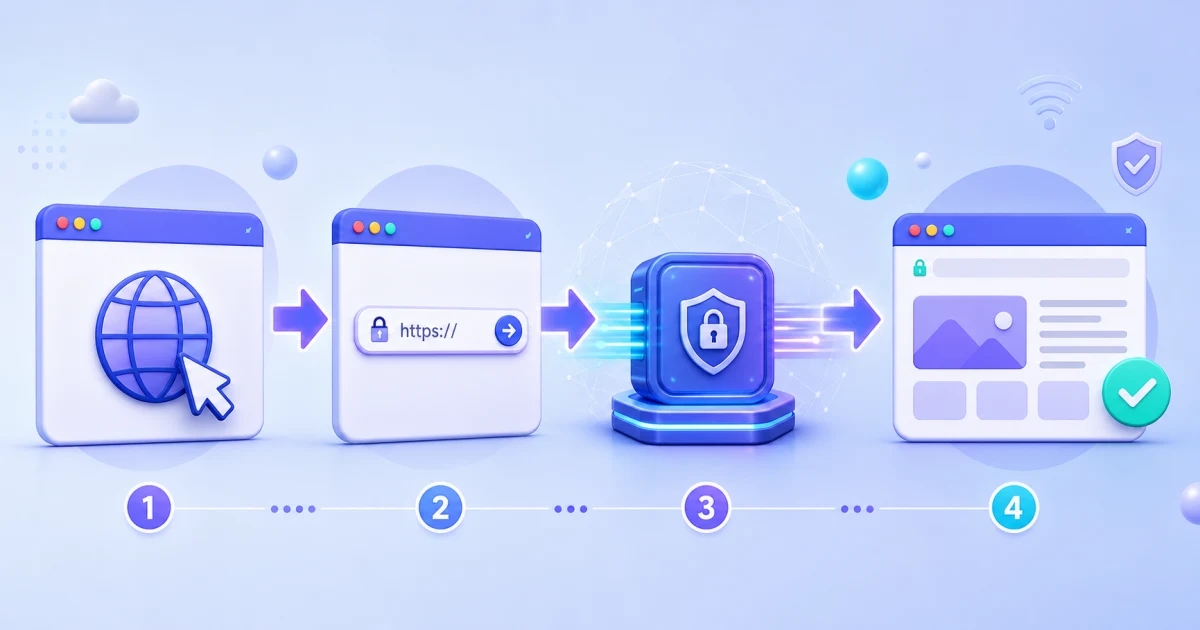
Instead of your browser making a direct request to the blocked site, it connects to WebsiteUnblocker first. WebsiteUnblocker requests the page and returns a browser-friendly version of it. That extra step can help when the local network blocks the destination domain directly.
This is why no installation is required. There is no system tunnel to configure, no app permission to approve, and no browser extension to install. The trade-off is scope: the unblocker affects the browsing session, not every connection on your device.
What it can safely help with
The safest use cases share three traits: the content is public, the task is short, and you are not handing over sensitive information.
Opening a page blocked by an overbroad filter
Network filters are blunt. A school or workplace filter may block an entire category even when one page in that category is useful. For example, a documentation page, public forum answer, or educational video may be blocked because the parent domain is classified too broadly.
For that kind of task, a website unblocker can be reasonable. You need a public page, not a private account session.
Checking whether the problem is your network
Sometimes a site looks down, but only from your current connection. Opening the same page through WebsiteUnblocker gives you a quick comparison path. If the page works through the unblocker, the issue may be local filtering, DNS, region rules, or Wi-Fi policy.
This is not a full diagnostic tool, but it is a useful first check.
Using a managed or shared device
On a managed laptop, school Chromebook, library computer, or hotel business-center machine, installing a VPN may be impossible or inappropriate. A website unblocker fits because it works inside the browser.
That does not override the rules of the network you are using. It just means you have a no-install option for legitimate browsing tasks.
Accessing public information while traveling
Travel networks can be inconsistent. Some block file-sharing sites, social platforms, translation tools, or local services by default. If you only need to read a public page or check information, a browser-based unblocker can be simpler than changing device-level network settings.
What it cannot promise
A good unblocker should be honest about its limits.
It cannot make account logins risk-free
If you log into a website, the site knows who you are through that account. The unblocker may change the network path, but it does not erase the login.
Some sites may also challenge the session because the login appears from a different network. That can be a sign that the site's security system is working as intended.
It cannot protect every app
WebsiteUnblocker runs in the browser. It does not cover your email app, game client, messaging app, background services, or other browsers. If you need all-device protection, you are looking for a VPN or another device-level tool.
It cannot guarantee every media site will play
Media sites often use multiple domains, video chunks, origin checks, DRM, and player-specific scripts. A page may load while the video itself fails. That does not always mean the unblocker is slow. It may mean the player requires a request pattern that is difficult or unsafe to proxy.
It cannot make unsafe downloads safe
If a file is risky, an unblocker does not clean it. Avoid executable downloads, cracked software, and unfamiliar files. Opening a public article is one thing. Downloading unknown software through a proxy path is another.
What HTTPS hides and what it does not
Most people ask a version of this question: "Can my school, employer, ISP, or Wi-Fi provider see what I open?"
The practical answer:
- They can usually see that you connected to WebsiteUnblocker.
- They may not see every final page you open through the encrypted unblocker session.
- They can still enforce network rules against access to the unblocker itself.
- They can still see traffic timing, volume, and the device on their network.
- If you log into a target site, that target site can identify your account.
This is why the safest description is not "invisible browsing." It is browser-based access through an intermediate service.
That is still useful. It is just not the same thing as disappearing.
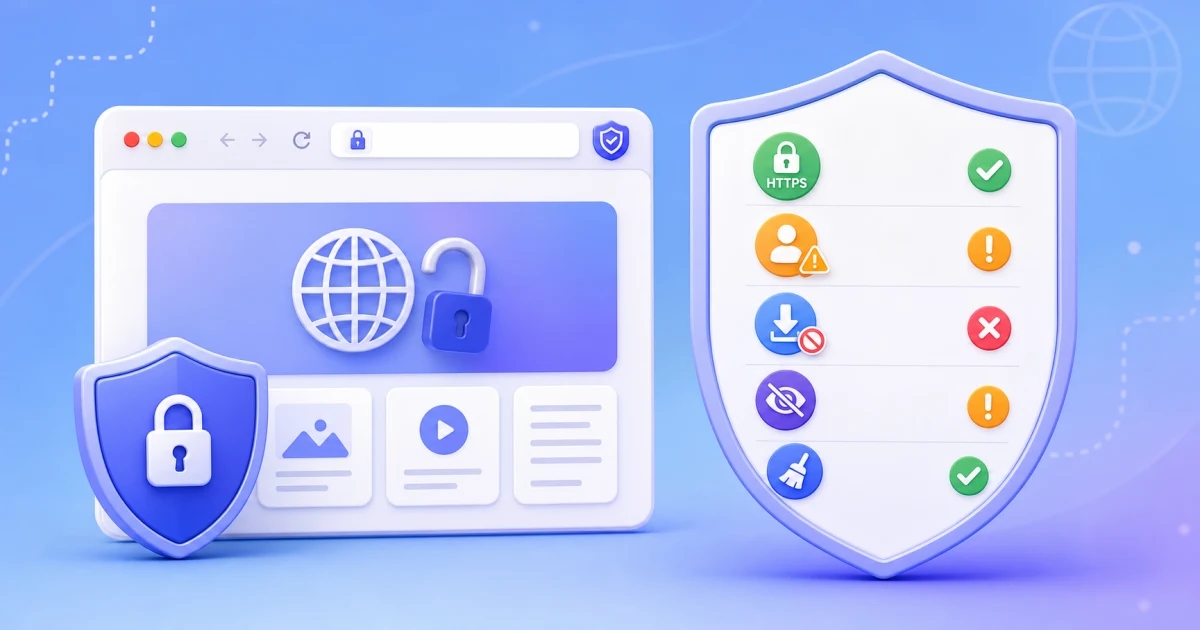
A safe-use checklist
Before you open a blocked website through any unblocker, run a quick mental checklist.
1. Is the page public?
If the page can be read without logging in, it is a better fit. Public pages are lower risk because you are not giving the destination account credentials or private data.
2. Would I type this information on a shared computer?
This is a useful test. If you would not type the information on a shared library computer, do not type it into a proxied session either.
3. Am I downloading anything?
Reading is safer than downloading. If a site asks you to install a file, extension, certificate, or helper app, stop and reconsider. A no-download unblocker should not require you to install something to view an ordinary page.
4. Is the page asking for a new login or verification?
Extra verification may be normal, but it also means the site is treating the session as unusual. For important accounts, switch to a direct trusted connection.
5. Can I close the session cleanly when done?
On shared devices, close the tab and the browser window. If the browser offers to save passwords, choose no. Do not leave a private session open for the next person.
Step-by-step: using WebsiteUnblocker well
Here is the workflow I recommend:
- Open WebsiteUnblocker in your browser.
- Paste the exact URL you want to view, including
https://when possible. - Wait for the first page to load fully before clicking deeper links.
- Use the page for the specific task you came for.
- Avoid typing sensitive personal information.
- If media, login, or forms break, do not keep retrying blindly.
- Close the tab when finished.
The key is to keep the session narrow. A website unblocker is not a place to move your whole browsing life. It is a practical way to open a blocked page when a browser-based tool is the right fit.
Real examples
You need a blocked research article
This is a good use case. The page is public or mostly public, the task is reading, and you are not entering sensitive account data. Paste the article URL, read what you need, then close the session.
You need to check a social post
Public posts are usually reasonable to try. Logging into a personal social account through the unblocker is more sensitive. The platform can identify you, and the login may trigger extra checks.
You need to access a work dashboard
Do not use a website unblocker unless your organization explicitly approves that workflow. Work dashboards often contain private data, access tokens, customer information, or admin controls. Use the approved network path.
You want to watch a video
Try it if the video is public and low-risk, but expect mixed results. Some video pages load fine. Others fail because of media delivery, player restrictions, or account checks.
You are on public Wi-Fi
If the Wi-Fi blocks a public page you need, an unblocker may help. If you are handling private accounts, use a trusted connection and consider a full-device privacy tool instead.
Website unblocker vs VPN
These tools overlap, but they are not interchangeable.
| Situation | Better fit | Reason |
|---|---|---|
| Open one public blocked page | Website unblocker | Fast, browser-only, no installation |
| Protect all device traffic | VPN | Covers apps beyond the browser |
| Use a managed computer | Website unblocker | No app install required |
| Log into sensitive accounts | Direct trusted connection | Less third-party handling |
| Browse casually while traveling | Website unblocker or VPN | Depends on whether browser-only access is enough |
| Hide all app traffic from local Wi-Fi | VPN | A website unblocker does not cover other apps |
If the task starts and ends in one browser tab, WebsiteUnblocker is often the simpler tool. If the task involves the whole device, it is not enough.
Common mistakes to avoid
Mistake 1: Treating "unblocked" as "private"
Access and privacy are related, but they are not the same. Opening a page through an unblocker may help you reach it. It does not automatically make the session anonymous.
Mistake 2: Logging into important accounts
If an account controls money, identity, work data, school records, health information, or private messages, use a direct trusted path. The convenience is not worth the extra complexity.
Mistake 3: Ignoring browser warnings
If your browser warns about a download, certificate, unsafe page, or suspicious redirect, pay attention. Do not dismiss warnings just because you are trying to get past a block.
Mistake 4: Assuming every broken site is the unblocker's fault
Some sites are difficult to proxy because of how they are built. Others block shared traffic. If one site fails, try a simpler public page before judging the whole tool.
Mistake 5: Leaving sessions open on shared devices
Close the tab. Do not save passwords. Do not leave personal pages open. This is basic, but it matters more on computers you do not own.
FAQ
Is WebsiteUnblocker free to use?
WebsiteUnblocker is designed as a browser-based way to open blocked websites without installing software. Always use it responsibly and avoid sending sensitive information through any tool you do not need for that task.
Do I need to install an extension?
No. The core benefit of a website unblocker is that it works in the browser. If a random page asks you to install an extension, helper app, or certificate before opening a normal website, be cautious.
Can WebsiteUnblocker hide my IP address from the target site?
For proxied browser requests, the target site generally sees the proxy path rather than your direct network address. But if you log into an account, the site can still identify you through that account.
Can my school or workplace see that I used it?
They may be able to see that your device connected to WebsiteUnblocker. A website unblocker is not designed to make proxy use invisible to the network you are on.
Why does a blocked website still fail to open?
The site may require login, use strict media delivery, block proxy infrastructure, depend on real-time connections, or load resources from domains that are also restricted. Some pages are simply not good proxy candidates.
Is it safe for passwords?
For important accounts, use a direct trusted connection. A website unblocker is best for public browsing, not sensitive account management.
Bottom line
WebsiteUnblocker is valuable because it is quick, browser-based, and does not require installation. That makes it useful for opening public blocked pages, checking access issues, and browsing from devices where installing a VPN is not practical.
Use it with a clear boundary: public pages are a good fit, sensitive accounts are not. Keep sessions short, avoid risky downloads, respect the rules of the network you are using, and switch to a trusted direct connection when privacy or account security matters more than convenience.